Write the final estimate on the ticket and send it. The customer checks each line and the total on their phone and slides to approve. The ticket moves to In repair on its own, the date and time of the approval are recorded, and it shows up in your Notifications. Offer two or three options and let the customer pick one. Approval works on every plan; from Standard the customer is sent the estimate automatically, and a reminder can follow.
Available on: All plans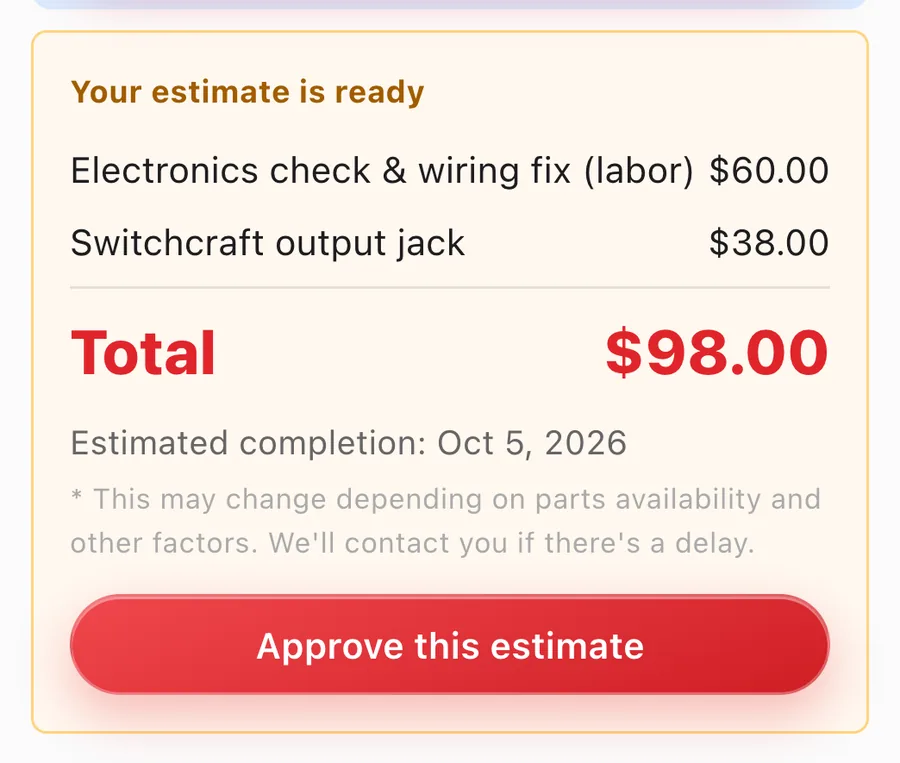
The customer reads each line, the total, the ready date and your note, then slides to approve. A slide rather than a tap means no accidental approvals. Approving moves the ticket to In repair, and the date and time stay on the ticket and its timeline.
Split the final estimate into options, for example a basic fix and a full restoration, up to Option C. Lines that belong to every option stay common. The customer picks one and slides to approve it, and the ticket keeps just that option's lines.
On Pro, attach photos to the final estimate so the customer sees the wear or damage you found. Your note to the customer appears just as you wrote it, below the estimate.
From Standard, sending the final estimate sends the customer a link to the page by email (or LINE, SMS or WhatsApp, if that's how they hear from you). Switch on reminders and, if there's no answer after the number of days you choose (2, 3, 5 or 7), one reminder goes out automatically. Everything sent is kept on the ticket's timeline.
At check-in, enter a rough estimate (a range is fine) and the customer sees it on their page as a guide price. If you can price the job on the spot, use the Estimate tab at check-in and the customer accepts the price when they sign.
After a closer look, add a line for each job, with a quantity where it's needed. Items in stock come up as you type, and they're set aside for this repair once you send the estimate. Add a cancellation fee if one applies.
Press "Save and send final estimate". The ticket moves to Estimated (Awaiting reply) and the estimate appears on the customer's status page.
Once approved, the ticket moves to In repair and the approval appears in your Notifications. If the customer says yes on the phone, open Customer page on the ticket and approve it together; for an estimate with options, record the chosen option on the ticket.
If the work turns out different, record a price change with a reason. After the work is done, the customer's page shows the final amount next to the original estimate and the difference.
Yes. Online approval is on every plan. On Free the estimate isn't emailed automatically, so send the link from Customer page on the ticket yourself. From Standard, the estimate goes out automatically to customers with an email address (or a connected LINE, SMS or WhatsApp), and you can switch on a reminder.
Until the repair starts, they can open "Want to cancel the repair?" on the same page and slide to cancel. If you've set a cancellation fee, the amount is shown before they confirm. The cancellation shows up in your Notifications; when the item is ready to go back, mark the work done and their page shows it's ready to collect.
Yes. The date and time of approval are saved on the ticket, the timeline gets an "Estimate approved" entry, and the customer's page shows when it was approved.
Items picked from stock are set aside for the repair when you send the estimate and come out of stock when the work is marked done. Parts for a cancelled repair go back into stock. On an estimate with options, lines that belong to an option aren't set aside until the customer picks it.
Yes. Edit the final estimate and send it again: the customer's page shows the new version straight away, and from Standard they're emailed that the estimate has been updated and asked to review it again.
Lines entered before tax are listed with a subtotal and the tax, and the total including tax is shown in large type underneath. Tax-exempt lines are marked as such, so the customer can see exactly what they're paying for.
The Free plan covers up to 100 repairs a month for 1 staff login, with no credit card, and stays free. Automatic email updates to customers start on Standard. Every new account gets all Pro features free for 30 days.